Controls
Understand each v1 flight control, its firmware-authoritative state, and which controls to leave off during a first beginner flight.
# v1 flight screen
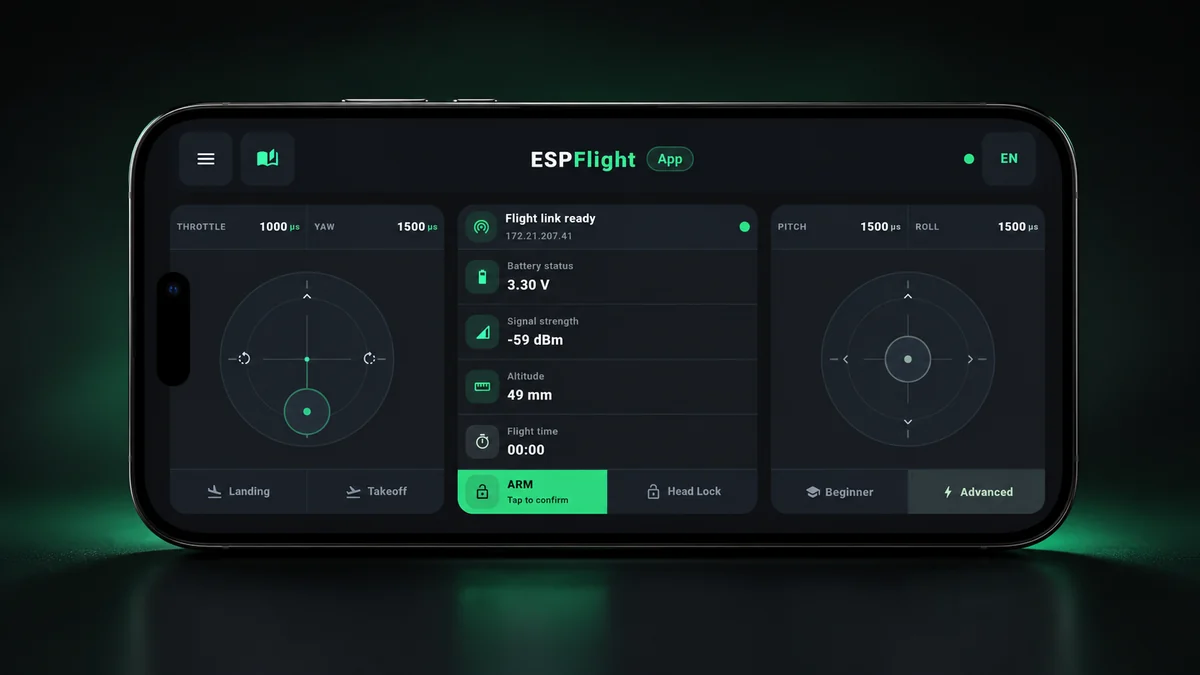
The v1 interface groups Throttle/Yaw on the left, Pitch/Roll on the right, live flight/system status in the center, and the ARM, Head Lock, mode, Takeoff and Landing actions along the lower control area.
# Controls and beginner use
Swipe horizontally to see all columns.
| Control / UI area | What it does | Beginner rule |
|---|---|---|
| Left control — Throttle / Yaw | Throttle requests motor power; Yaw requests rotation around the vertical axis. | Keep throttle at minimum before ARM and while preparing any bench test. |
| Right control — Pitch / Roll | Commands forward/back and side-to-side attitude control. | Verify the real Drone responds in the expected direction before normal flight. |
| ARM / DISARM | Requests explicit firmware ARM state changes. | Trust telemetry-confirmed state. ARM requires low throttle and healthy pre-arm conditions. |
| Beginner | Less aggressive user-facing control profile for the starting flight path. | Use for the first controlled flight unless you have already validated another mode. |
| Advanced | More advanced control profile. | Use only after the build is stable and you understand the response. |
| Head Lock | Heading-relative control feature. | Leave off for the first basic hover; validate separately at low risk. |
| Takeoff / Landing | Assisted workflows that depend on supported/ready altitude assistance. | Do not rely on these for a first manual build without a validated VL53L0X path. |
# ARM / DISARM sequence
- 1
Confirm the correct Drone and live telemetry
Do not ARM a stale or unidentified connection.
- 2
Set throttle to minimum
Firmware v1.0.0 requires throttle ≤ 1050 for ARM.
- 3
Tap ARM and wait for telemetry confirmation
Successful ARM is an ARMED-ready state; at low throttle the motors should remain off.
- 4
Before touching the Drone, return throttle low and DISARM
DISARM is explicit. Confirm telemetry reports DISARMED before approaching motors/propellers.
# Recommended first-flight control setup
For the first controlled manual hover: use Beginner mode, leave Head Lock off, keep assisted Takeoff/Landing out of the path unless the optional altitude sensor has already been validated, and change only one control variable at a time.